Fleet Lists
Select the options menu and then Fleet List.
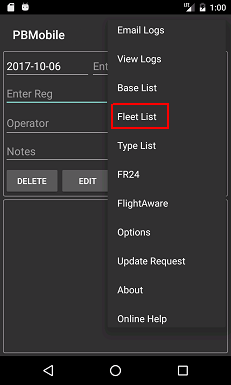
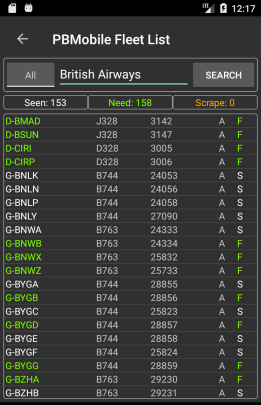
The Fleet List page will now be shown, If you have searched for a registration on the main page then the Fleet List text box should be populated.
Click search to see all aircraft based at the selected location.
This page also has autocomplete for the Text box between the All and Search buttons.
The Fleet List autocomplete is also dependent on what option you have set for Fleet Search on the options page.
Start typing the required Fleet Name or ICAO and the list will populate.
The Search Button has a Long Press function which will allow wildcard searching.
example: To see all easyJet fleet aircraft type easyJet and long press the search button to see all easyJet Airline, Switzerland and Europe
Select a Operator from the list and click search, you should now see a list of all aircraft operated by the selected Operator.
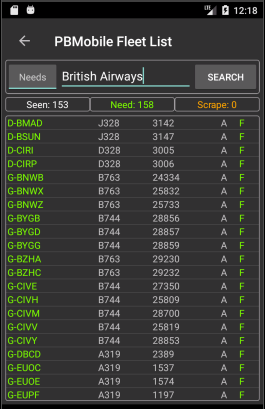
If you press the All button (Top Left) then the list will only show what is needed for the specified Operator.
To clear the text in the Fleet Text Box just long press the Text box and release.
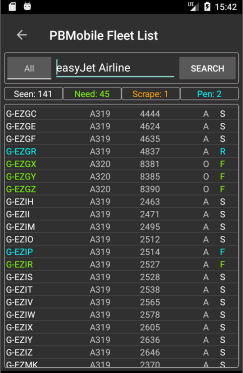
The Fleet List shows Registration, ICAOTypeCode, Con Number, Status and if Needed or Not.
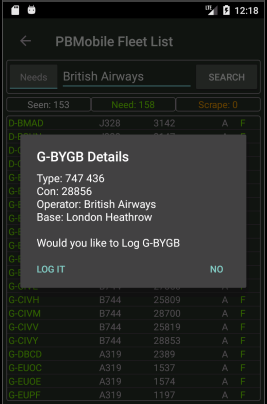
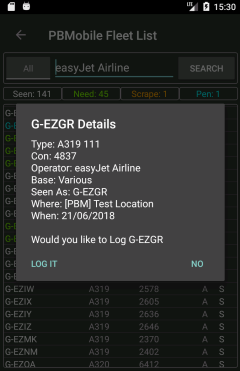
To log an entry on the list long press on the required row and you will see the log dialog (image 3).
Note to log from the list a location needs to be entered on the main screen.
 _
_ _
_
If you have enabled any of the PBM Pending options on the options screen then a pending count will be shown.
The pending count shows a count of aircraft logged that are Needed (including Scrapes if in Registration mode) it does not include any already seen aircraft that have been logged.
if already logged in PBM then the log dialog will show [PBM] in front of the location to show the aircraft is in PBM Pending state.
NOTE the pending count is not included in the Seen, Need and Scrape counts as the aircraft is not truly logged until imported into the main PlaneBase program.
If you log via the dialog panel press search again for the totals to be updated.
Third image below i logged G-EZIP using the dialog, press search again and the details have turned to blue.
 _
_ _
_
To go back to the main page click the arrow to the top left.