Email Logs
After you have finished logging at the selected location you then need to email your logs to yourself and anyone else if you want to.
Select the options menu and then Email Logs.
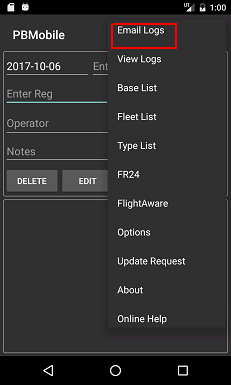
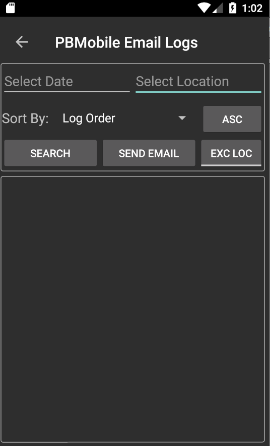
Select a date and and location,
The location box will auto populate with locations entered for the selected date.
If you want to see all logs for all locations on the selected date type 'All' without quotes into the location box
NOTE: If you select 'All' above then you need to make sure you include select the EXC LOC button otherwise you will have a log emailed with no locations added.
The 'Exc Loc' button will add the location to the end of each aircraft logged and can be used if you have logged at various
locations during the day, if pressed the text will change to 'Inc Loc' to show that the location will be included.
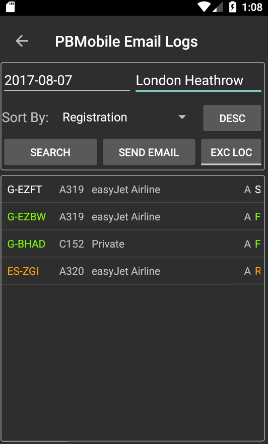
Press search and any logs found for the selected date and location will be shown,
Logs can be sorted by Log Order, Location or Registration and in Ascending or Descending order.
Press email and you should see an options menu for you to select the email client to use to send yourself an email.
 _
_ _
_
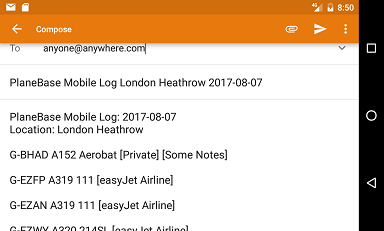
The below image shows the email body containing logs from London Heathrow today along with the Notes is added.
The below image shows the email body containing All logs from today along with the location for each.
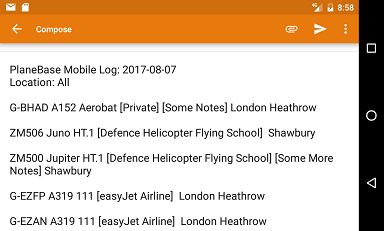
All that is needed is to add your email address and press the send button of your email client.
You can copy the log from the email when received and import into PlaneBase using Multilog.
Brackets [ ] are used around the Operator and any Notes, This formatting is required to allow importing using Multilog in PlaneBase.
Click here for how to import logs into PlaneBase