The 'Search Options' are enable by selecting the search icon at the top of the screen.,
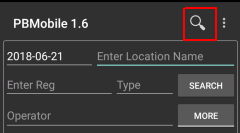
Search Options shown below
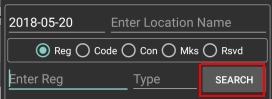
The Search Button shown above is a dual function button a single press will search for the entered registration a long press will search for a part registration.
Example1: If you enter N1 in the registration and press search it will show details for N1 only, if you long press the search button it will find everything that starts with N1.
Example2: If you enter 130 in the registration and press search it will show details for aircraft with a reg matching 130 only, if you long press the search button it will find everything that starts with 130.
Select an option to search for and the Reg box text will change to show what is selected. (You use the Reg box to search for details)
If more than one record is returned then the results table will populate with results found.
On selecting an entry from the results table, the search option will change back to Reg to allow the search button to be used to check if the registration needed or not.
If you search for Mks/Fleet or Reserved then the details will be shown below the Reg box (you need to press the ‘More’ Button).
If an aircraft has details in the Mks field and a Reserved Reg field then both details will be shown below the Registration text box.
Note: Auto Dash is disabled when selecting any Search option apart from Reg and Rsvd, you will need to select Auto Dash again for further searches.
Mrks\Fleet Example:
You need Gen Av data in the PBData.sqb
Long press the search button and the search options panel will open.
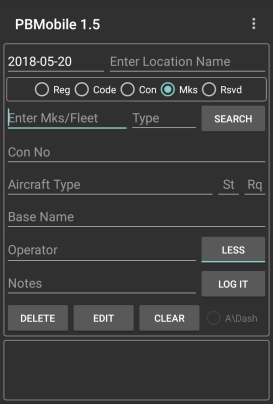
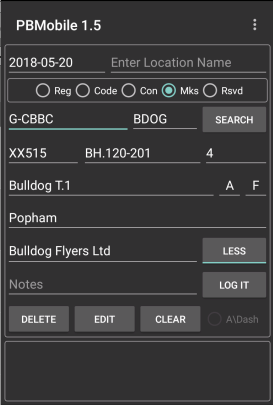
If you select Mks the Reg box text will change to Enter Mks/Fleet (First image).
Search for XX515 and the Reg box will show the current reg of G-CBBC,
Now press the ‘More’ button and you will see XX515 directly below G-CBBC (Second image).
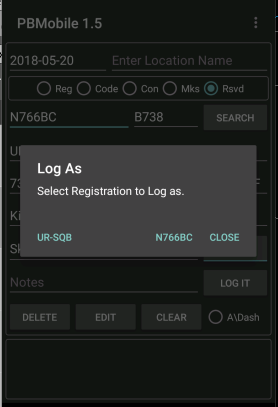
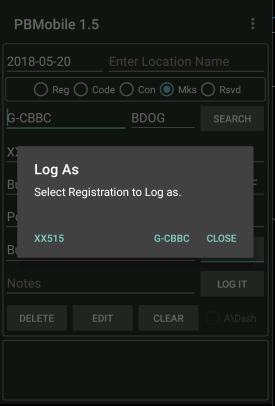
If you want to log as XX515 then long press on the Mks text box in this case XX515 and you will be asked to select the registration you want to log (third image).
PBMobile's Notes will be updated with the current registration in PlaneBase for reference. ex: Current Reg G-CBBC
Note: If PlanePlotter Mobile is used and you log a Reserved Reg then the current Reg in PlaneBase will be used to update the Basestation.sqb used with PlanePlotter Mobile.
When importing in to PlaneBase using Multilog the Reserved Registration will not be found. you will need to manually log and Reserved aircraft.
 _
_ _
_
Reserved Example:
Long press the search button and the search options panel will open.
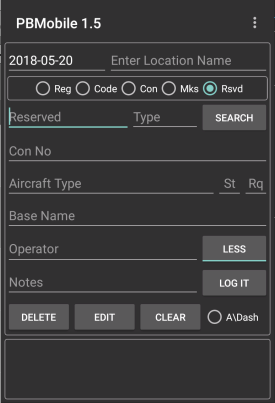
If you select Rsvd the Reg box text will change to Reserved (First image).
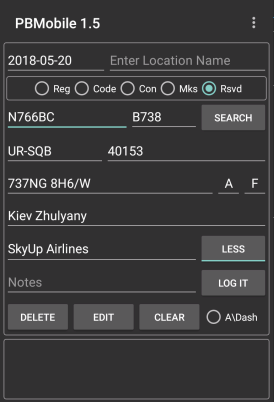
In the example i search for UR-SQB and the Reg box will show the current reg as shown in PlanBase of N766BC,
Now press the ‘More’ button and you will see UR-SQB directly below N776BC (Second image).
If you want to log as UR-SQB then long press on the Reserved text box and you will be asked to select the registration you want to log (third image).
PBMobile's Notes will be updated with the current registration as in PlaneBase for reference. ex: In PB As N766BC
Note: If PlanePlotter Mobile is used and you log as other marks then the current Reg will be used to update the Basestation.sqb used with PlanePlotter Mobile.
 _
_ _
_