Text Search
Text search will allow you to search for registrations that you may have received in an Email.
This could be a Dues List or a Log from an airfield etc.
NOTE: Many android email apps are available and use different message formats HTML or TEXT.
Logs\Due Lists may also be sent as HTML or TEXT depending if they are copied from elsewhere.
PBM will try and work the format out but it may fail on some.
Registrations all need to be in the same column for PBM to be able to search for data.
Errors may be seen if the data copied contains text other than registrations in the column being searched..
Text Search will try to add the dash to non military details however military serials will need a dash to work with the auto dash feature.
Android has a limit on the amount of data that can be copied to the clipboard, this varies between devices and manufacturers
the paste button tires to get around this but is not guaranteed.
Example Logs can be found at the end of this page.
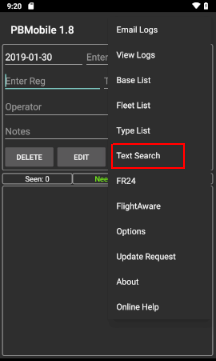
Select the options menu and then Text Search.
 _
_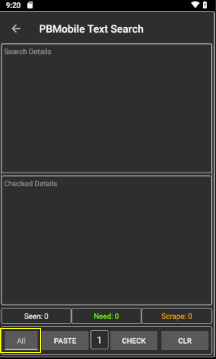
The Button highlighted Yellow above will only show Needed\Required details.
When checked\unchecked you need to press the check button again.
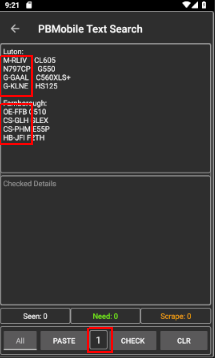
The text search can be used in two ways, you can type registrations in one on each line or you can use the paste button as below.
- Copy the text from your source document email etc and press the paste button (click here for how to copy text)
- Select the column (highlighted Red below) that contains the registrations.(Below images shows Reg in first column).
- Press Check.
 _
_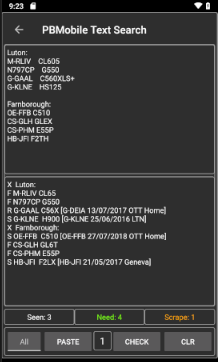
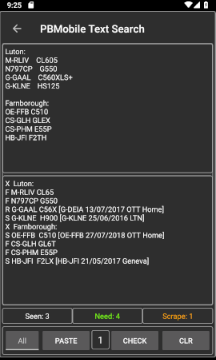
If found the details will be shown depending if a Frame or Reg user in the bottom window with the first letter showing status.
S = Seen.
F = Frame.
R = Scrape.
N = Need.
X = Not Found. X will also be shown if a word is included in the data as shown in second image with Luton and Farnborough.
M = Multiple results found.
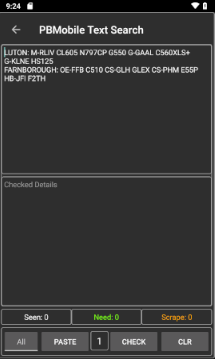
If the pasted data scrolls across the Search Details window (first image below) and the registrations are not shown in a column the search will fail.
You can try the below solution, if this also fails then the data is not in a format PBM can use.
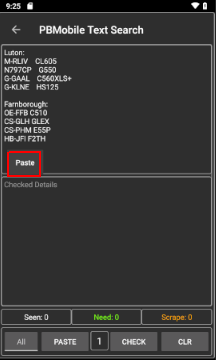
- Press the Clr button.
- Long press in the Search Details window and a pop up will be shown with Paste options.
- Press Paste in the pop up menu and the data should show as in image 3 below.
- Press Check.
NOTE: The paste popup may show differently depending on Android Device and Android Version.
you may also see a 'Plain Text' option that you could also try.
 _
_ _
_
NOTE: If the data contains words like TOWER, DELTA and APRON you will see odd totals as the search will try to add a dash to the text in the selected column.
TOWER = T-OWER
DELTA + D-ELTA
APRON = A-PRON
 _
_
You need to check for this or remove the words before pressing the check button.
Text in Red may cause Text Search to fail.
Example 1 below should work fine
====================
Luton:
M-RLIV CL605
N797CP G550
G-GAAL C560XLS+
G-KLNE HS125
Farnborough:
OE-FFB C510
CS-GLH GLEX
CS-PHM E55P
HB-JFI F2TH
====================
Example 2
Will fail as Luton has registration in first column and Farnborough has registration in the second.
====================
Luton:
M-RLIV CL605
N797CP G550
G-GAAL C560XLS+
G-KLNE HS125
Farnborough:
C510 OE-FFB
GLEX CS-GLH
E55P CS-PHM
F2TH HB-JFI
====================
Example 3
Will fail if the paste button is used as Luton has some notes about an OTT.
Try using the Paste pop up menu as mentioned above (Long press in Search Details).
====================
Luton:
M-RLIV CL605
N797CP G550
G-GAAL C560XLS+
G-KLNE HS125
An unknown G550 went OTT at 13:47
Farnborough:
C510 OE-FFB
GLEX CS-GLH
E55P CS-PHM
F2TH HB-JFI
====================