PlaneBase Mobile Options.
Before using PlaneBase Mobile you should open the options screen
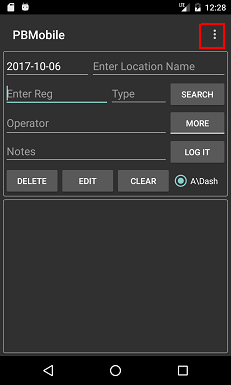
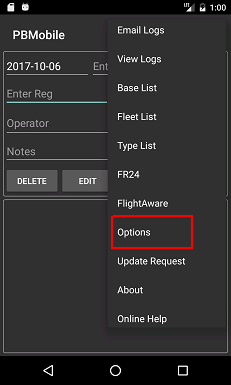
by clicking the three dots to the top right of the screen (first image) and select Options (second image).
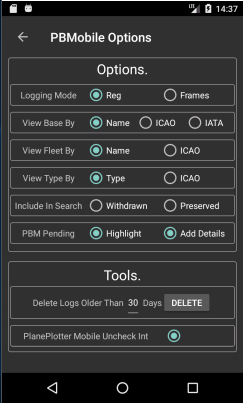
This will bring up the Options screen(third image)
 _
_ _
_
Options
Here you can choose:
Logging Mode: Select Registration or Frames.
Note The three options below relate to all results found by PlaneBase Mobile when searching.
this also includes the auto complete boxes for location on the main screen, and the Base,Type and Fleet lists.
View Base By: Select Name, ICAO or IATA (London Heathrow, EGLL or LHR)
View Fleet By: Select By Name or ICAO (British Airways or BAW).
View Type By: Select Type or ICAO (787 9 or B789)
If you have included Withdrawn and\or Preserved when building the PBData.sqb you also have the option of including them in the searches.
Note: Including Withdrawn and Preserved may slow the search down a little but should not be a problem on the latest Android devices.
PBM Pending:
Highlight:
Selecting Highlight will show the text of any aircraft needed (including scrapes if in Registration mode) in blue.
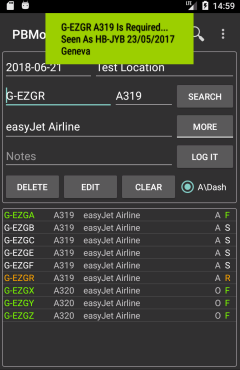
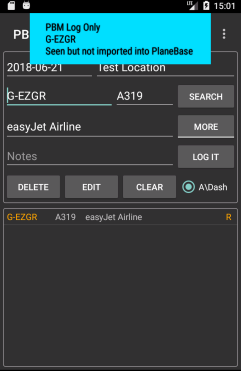
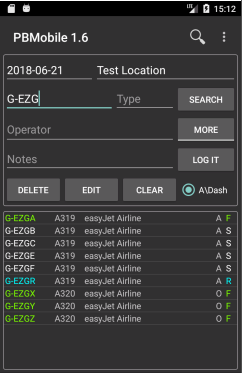
First Image below i have searched for G-EZG (long press Search Button) then selected G-EZGR as it is a scrape and can see i need it as seen previously as HB-JYB .
Second Image shows i have logged G-EZGR which is shown in the table, but if i select it and search then the alert shows i have logged it in PBM Only.
In the third image i have searched for G-EZG again but the results now show G-EZGR in blue as i have seen it but it has not been imported into the main PlaneBase program.
Once the log has been emailed and imported into PlaneBase and a new PBData.sqb has been built then G-EZGR will show as seen and show as white.
 _
_ _
_
Add Details:
Selecting Add details will add seen details (Seen As, Seen When, Seen Where) to the PBData.sqb
NOTE: Highlight (above) will be automatically selected with Add Details.
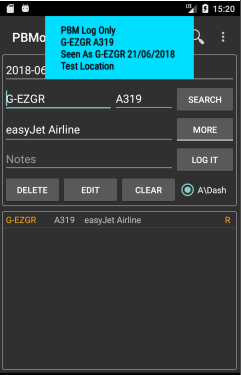
If Add Details is selected then the Reg, Location and Date will be added to the PBData.sqb so the second image above will look like the below image with seen details added.
If you delete a single aircraft log then the seen details will be removed (Add Details must be selected for seen details to be removed).
if you have logged with Add Details and then disable it, Seen details will not be removed and you may see some strange alerts.
Tools
Delete Logs:
To remove logs older than 30 days press the delete button.
You can change the number of days logs to remove by entering a different number in to the text box (underlined).
If you want to clear all logged aircraft then put a 0 (zero) in the text box and press the delete button.
PlanePlotter Mobile
Note: Only available if PlanePlotter Mobile is installed
If you are a PlanePlotter Mobile user selecting this option will remove the interested mark from the Basestation.sqb used with PlanePlotter Mobile when you log an aircraft.
If you log an aircraft and have the PlanePlotter Mobile option enabled if you then remove the log the Basestation.sqb entry will NOT be changed back to interested.
Note: This feature will only work with a Basestation.sqb created by PlaneBase or PlaneBase SQB Creator 1.2
Once you have selected your required options you can now start to log.