[Android] Copy Database to Device
To copy your database to your Android device you need to plug you device in to your PC or one of the cloud drives that are available i.e iCloud, GoogleDrive, OneDrive, Dropbox etc
Once your device is plugged in you may need to allow file transfers from your PC via one of the USB options on the Android Device.
Each Android version release may have different options to enable file transfer, if you are not sure then please Google the Android version your device is using to find out how to use the file transfer feature.
If you do not have a file manager on your device then you need to download one from the Play Store.
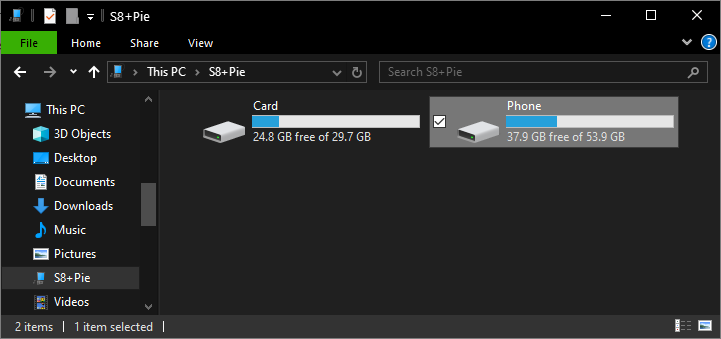
Below image shows my Galaxy S8+ located under 'This PC' (Win 10) earlier versions of windows will show My Computer.
NOTE: You may see the phones storage options as Internal Shared Storage or Shared Storage as well as the SD Card.
Please select the Internal Storage (Phone), this is shown as Phone in the image below.
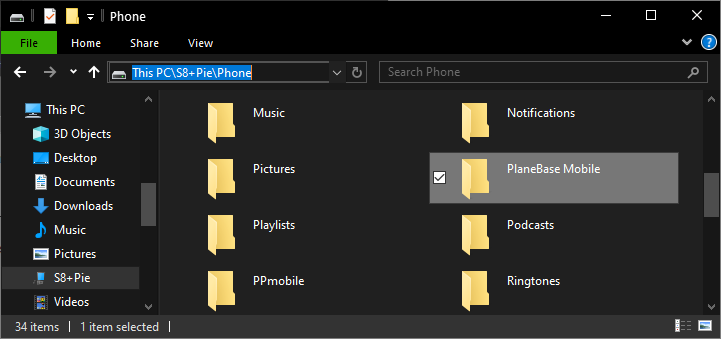
Below image shows i have selected the Phone Storage (Not Card or SD Card) and located the PlaneBase Mobile folder.
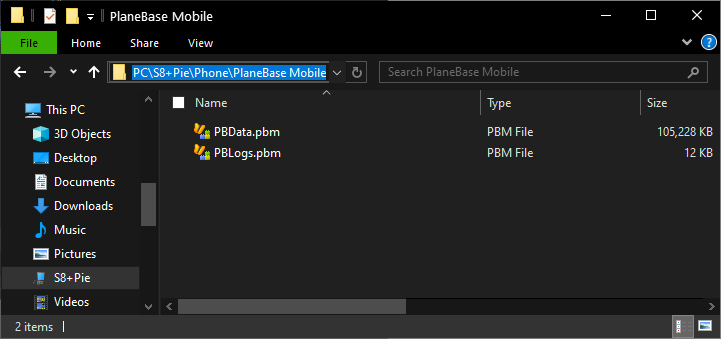
You now need to copy the PBData.pbm from the C:\PlaneBase\PlaneBase Mobile\Database to the PlaneBase Mobile folder on your device.
Once done you can register PBMobile with the details provided.